
Select the model you want to generate your video with.
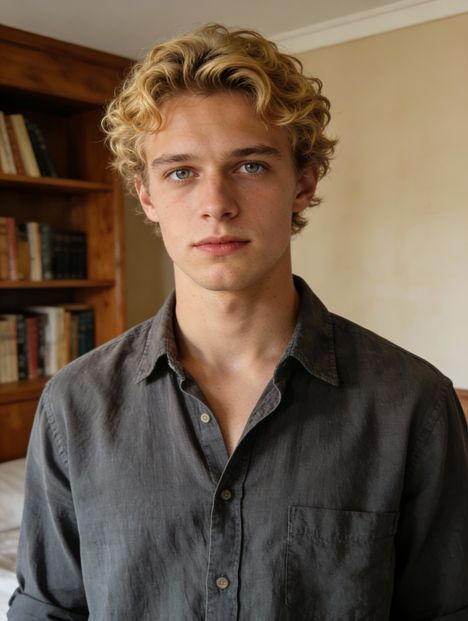
Same orientation as the reference video. Supports up to 30s video generation.
No Watermark
Private
Free Kling 2.6 Motion Control Online
Copy motion from a reference video and apply it to any character to create expressive, performance-driven videos with Kling AI.
Why Everyone Is Talking About Kling 2.6 Motion Control
Kling 2.6 Motion Control is a popular feature of Kling AI, the AI video generator created by KuaiShou, that allows you to copy movement and expression from a real video and apply it to any character image. Instead of guessing motion from prompts, Kling follows the original performance, so characters move naturally, react convincingly, and feel consistent throughout the clip. Creators use Kling AI 2.6 Motion Control to animate AI avatars, build short cinematic scenes, remix viral motions, and produce engaging content for platforms like TikTok and X.
Key Features of Kling 2.6 Motion Control
Perfectly Synchronized Motion with Kling 2.6 Motion Control
With Kling 2.6 Motion Control, character movement, facial expression, and overall performance stay tightly synchronized across the entire video. Instead of drifting motion or broken consistency, the result feels cohesive and intentional, making scenes more believable and visually stable for storytelling and creative content.
Complex Action Recreation with Kling AI 2.6 Motion Control
Fast choreography, dramatic gestures, sports movement, and other demanding actions are handled more reliably with Kling AI 2.6 Motion Control. Motion remains structured and readable even during challenging sequences, which is why many creators use it for dance videos, cinematic performances, and expressive character animation.
Precise Hand and Gesture Control with Kling AI Motion Control
Small details like pointing, waving, subtle arm movement, and natural hand behavior are preserved more convincingly with Kling AI Motion Control. This makes a noticeable difference for talking characters, presenters, tutorials, and scenes where believability depends on fine motion rather than large body movement alone.
30s One-Shot Motion with Kling AI Video Generator
The Kling AI video generator supports up to 30s of continuous one-shot motion, allowing characters to perform through an entire scene without frequent resets or broken continuity. This 30s capability makes it especially suitable for short films, storytelling clips, performance videos, and creative sequences where timing across the full duration matters.
Scene and Style Control with Kling 2.6 Motion Control
Beyond motion itself, Kling 2.6 Motion Control allows you to guide scene atmosphere, visual style, and environment through prompts while keeping the original performance intact. You can reuse the same motion across different backgrounds, moods, or aesthetics to explore multiple creative directions from a single performance.
How Kling 2.6 Motion Control Performs Against Other Models
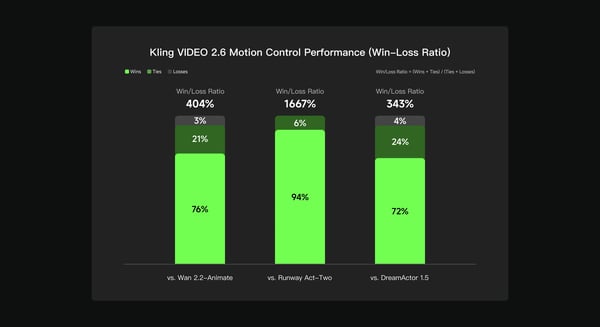
Based on an internal evaluation conducted by the Kling AI team, Kling VIDEO 2.6 Motion Control was benchmarked against Wan 2.2-Animate, Runway Act-Two, and DreamActor 1.5 using multi-dimensional human preference testing across motion quality, visual consistency, and overall output performance. The results show that Kling 2.6 Motion Control achieved a 404% win–loss ratio vs Wan 2.2-Animate, 1667% vs Runway Act-Two, and 343% vs DreamActor 1.5, indicating stronger consistency and more reliable motion-controlled video generation across different creative scenarios.
How to Create Videos with Kling 2.6 Motion Control Free On Bylo.ai
Follow these simple steps to get started with our platform.
Upload a Motion Reference Video
Start by uploading a short video that contains the movement, gesture, or performance you want to copy. Kling AI Motion Control will use this clip as the motion source for your final video.
Add a Character Image
Upload an image of the character you want to animate — a person, avatar, illustration, or stylized figure. Kling AI 2.6 Motion Control applies the motion from your reference video directly to this character.
Generate and Download Your Video
Click generate, preview the result, and download your motion-controlled video. The Kling AI video generator handles the animation automatically, so you can focus on creative ideas instead of manual editing.
What People Are Creating with Kling AI 2.6 Motion Control
AI Characters and Talking Avatars with Kling AI Motion Control
Creators use Kling AI Motion Control to animate AI characters that speak, react, and express emotion naturally. By transferring motion and facial performance from a reference video, avatars feel more alive and believable, making this use case popular for storytelling, VTuber-style content, and virtual presenters.
Dance, Performance, and Viral Clips with Kling 2.6 Motion Control
With Kling 2.6 Motion Control, creators can remix dance videos, acting performances, and expressive motion into new characters. This workflow is widely used for short-form content on TikTok, Reels, and X, where motion accuracy and expressive timing make videos stand out.
Short Films and Storytelling with Kling AI Video Generator
The Kling AI video generator enables filmmakers and storytellers to prototype scenes quickly by applying performance from one video onto different characters and visual styles. This allows creators to explore ideas, test concepts, and build narrative clips without complex animation tools.
Educational and Presentation Videos with Kling AI
Many users rely on Kling AI to create engaging explainer videos, tutorials, and presentation-style content. By animating characters with clear gestures and natural delivery, educational videos become easier to follow and more visually engaging.
Tips for Getting Better Results with Kling AI Motion Control
Follow these helpful tips to get the most out of our platform.
Use Clear Motion References for Kling 2.6 Motion Control
Choose reference videos where the subject is clearly visible and movement is continuous. Clean footage with stable framing helps Kling 2.6 Motion Control follow the performance more accurately and produce smoother animation.
Keep Body and Limbs Clearly Visible with Kling AI Motion Control
For best results, make sure the full body, arms, and hands are clearly visible in the reference video and not blocked by objects or cropped out. Kling AI Motion Control performs better when it can clearly track posture and limb movement throughout the scene.
Match the Character Framing with Kling AI Motion Control
Try to keep your character image aligned with the reference framing (for example, full-body image with full-body motion, half-body with half-body). This helps Kling AI Motion Control maintain more natural proportions and consistent movement.
Refine Style and Scene with Kling AI Video Generator
Once the motion looks good, experiment with prompts to explore different backgrounds, moods, and visual styles. The Kling AI video generator lets you reuse the same performance while testing multiple creative directions.
Looking for a Different AI Video Creation Approach
Kling Motion Control is built for precise camera movement and motion-focused scenes. If your goal goes beyond motion control and into full narrative video creation, kling 3.0 is another option you can explore. As a standalone AI video model, Kling 3.0 focuses on cinematic multi-shot generation, native audio, consistent characters, and longer video duration—making it suitable for storytelling, dialogue scenes, and complete AI-generated videos.